YouTube
YouTube Video Editing Guide for Indian Creators: The Complete 2026 Workflow
A complete YouTube video editing guide for Indian creators: workflow, hooks, Hindi captions, sound, thumbnails, chapters and export settings.
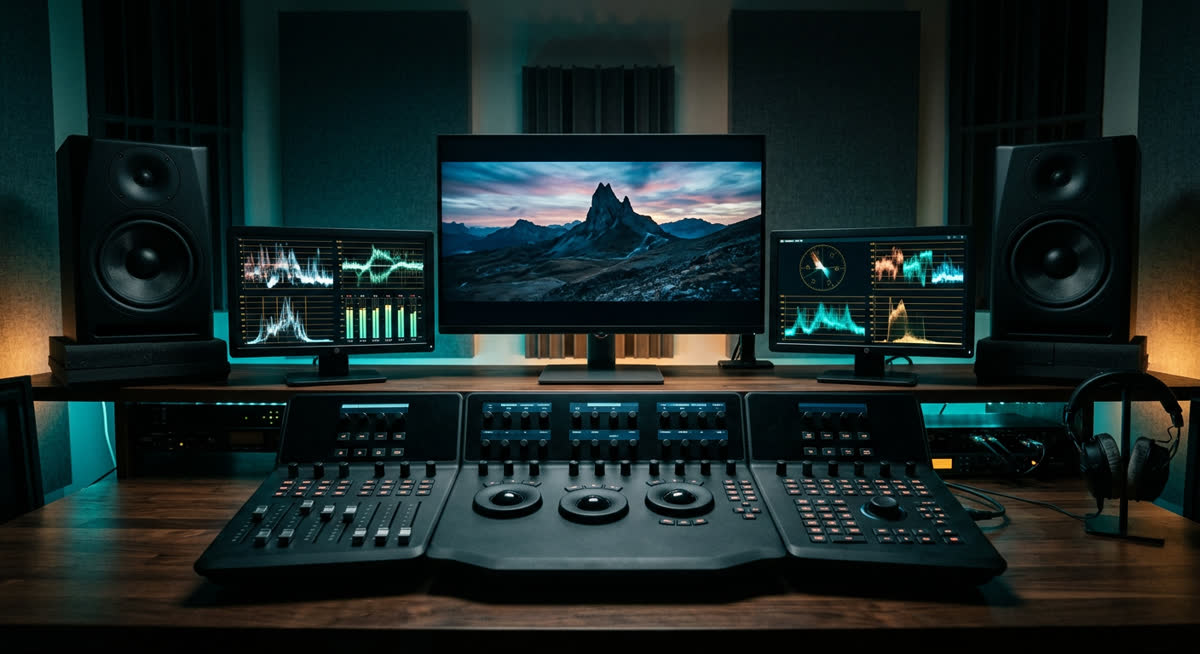
This YouTube video editing guide is for Indian creators who shoot on a phone or a basic camera and want videos that people actually watch till the end: coaching teachers in Hisar, doctors explaining health topics in Hindi, farmers and agri-experts, tech reviewers, food channels and small businesses. It covers the full workflow I follow as an editor, from organising footage to exporting and uploading, with the details that matter for Hindi and Hinglish audiences.
You do not need expensive software to follow it. The same principles apply in DaVinci Resolve (which has a capable free version), Premiere Pro, Final Cut or a good phone editor.
Step 1: Organise before you edit
Most editing time is lost searching for clips. Before you open the editor:
- Create one folder per video with sub-folders: footage, audio, music, graphics, exports.
- Rename clips in order (01_intro, 02_point1) and delete obvious failed takes.
- Note the good take numbers while shooting; a ten-second voice note on your phone is enough.
- Keep a copy of raw footage on a second drive or cloud storage until the video is published.
Step 2: Build a rough cut around the story
Lay all the usable takes on the timeline in script order and remove everything that does not move the story: false starts, repeated sentences, long "umm" pauses and tangents. Do not add music, text or effects yet. Watch the rough cut once at normal speed and ask: would a new viewer understand this, and would they stay?
The first 30 seconds decide everything
YouTube viewers decide very quickly whether to stay. Open with the promise of the video ("Is video mein main aapko 3 aise tarike bataunga..."), a striking visual, or the result first, then explain. Cut long channel intros, "hello dosto, kaise ho aap sab" greetings and subscribe requests from the start; move them later or keep them very short.
Step 3: Tighten the pacing
- Jump cuts between sentences keep talking-head videos moving. Change the framing slightly (a punch-in of 10–20%) on alternate cuts so it does not look jumpy.
- B-roll (supporting shots of the thing you are talking about) hides cuts and shows instead of tells: the crop in the field, the product in hand, the street in Hisar you mention.
- Pattern breaks every 30–60 seconds, such as a new angle, an on-screen graphic, a zoom or a short sound effect, help reset attention in long videos.
- Do not over-cut. Teaching and health content needs breathing room. Fast is good for entertainment; clear is better for education.
Step 4: Fix the audio first, then the visuals
Viewers forgive average visuals but not bad sound. In order:
- Noise reduction: remove fan hum, traffic and AC noise gently. Overdoing it makes the voice sound robotic.
- Levels: keep dialogue consistent through the video. Normalising the final mix to around −14 LUFS integrated is a common target for YouTube.
- EQ: a small cut in the low rumble and a slight lift in clarity makes phone-recorded voices sound richer.
- Music: keep it well under the voice. Use tracks you have a licence for or the free YouTube Audio Library. Popular Bollywood songs usually trigger Content ID claims, which can block the video or send its earnings to the label.
Step 5: Colour and consistency
Correct before you grade: fix white balance (skin should not look orange under tube lights or blue near windows), then exposure, then contrast. Only after that add a light, consistent look. If you shoot with two phones or a phone and a camera, match them so cuts between angles do not jump in colour.
Step 6: Text, graphics and Hindi captions
- Use on-screen text for key numbers, steps and names, not for every sentence.
- Pick one or two fonts and your brand colours, and reuse the same lower-third style in every video.
- Add subtitles. For Hindi and Hinglish videos, you can generate a draft SRT file with the free auto captions generator, correct it and upload it to YouTube Studio. Uploaded subtitles are usually far more accurate than YouTube's automatic ones for mixed Hindi-English speech.
- Keep important text away from the bottom edge where the player controls appear.
Step 7: Chapters, end screens and cards
Chapters help viewers jump to what they need and can appear in search results. In the description, list timestamps starting with 00:00, with at least three chapters, each at least 10 seconds long. Plan a 10–20 second ending with no important content so you can add an end screen pointing to your next video. Cards can point to related videos at the moments you mention them.
Step 8: Thumbnail and title
The thumbnail and title decide whether anyone clicks. A practical approach:
- One clear subject (usually your face showing a real expression, or the result), large text of three to five words, strong contrast.
- Thumbnail size 1280 × 720 pixels in 16:9; keep the file under 2 MB.
- Grab a sharp still from your footage with the video thumbnail grabber as a base, then design on top of it.
- The title should promise the same thing as the thumbnail, in the words your audience searches. The YouTube title, hashtag and caption generator helps you brainstorm options in Hindi, Hinglish or English.
- Do not mislead. Clickbait that the video does not deliver hurts watch time and trust.
Step 9: Export settings that work
For most Indian creators, a 1080p export is the right balance between quality and upload time:
- Resolution 1920 × 1080 (or 3840 × 2160 if you shot 4K and have good upload speed)
- Frame rate: same as shot (25, 30 or 60 fps)
- Codec H.264, MP4, high-quality variable bitrate; AAC audio at 48 kHz
To estimate how big the file will be and how long it may take to upload on your connection, use the video bitrate and file size calculator.
Step 10: Turn one video into Shorts
Every long video has two or three strong moments that can stand alone. Cut them into vertical 9:16 Shorts (up to three minutes, though most work best much shorter), reframe the speaker in the centre, add captions and link the full video. Shorts bring new viewers; long videos build trust and watch time.
A repeatable weekly workflow
- Monday: script and shoot two videos together
- Tuesday–Wednesday: rough cut, audio, colour
- Thursday: graphics, captions, thumbnail, title and description
- Friday: export, upload, schedule, cut two or three Shorts
Batching like this is how solo creators stay consistent without burning out.
Want an editor for your channel?
If editing is taking time away from making content, I edit YouTube videos and Shorts for Indian creators, coaches, doctors and businesses, in Hindi and English, including captions and thumbnails. See the YouTube video editing in India page or message me on WhatsApp with your channel link.
Frequently asked questions
Which software is best for YouTube video editing in India?
DaVinci Resolve has a strong free version, and Premiere Pro and Final Cut Pro are popular paid options. The software matters less than the workflow: tight story, clean audio, readable text and consistent thumbnails.
Can I edit YouTube videos on my phone?
Yes, for simple videos and Shorts. For long videos with many clips, captions and graphics, a laptop is much faster and gives better control over audio and colour.
Can I use Bollywood songs in my YouTube videos?
Usually not safely. Popular songs are protected and often trigger Content ID claims that can block the video or take its earnings. Use the YouTube Audio Library or properly licensed music instead.
How do I add Hindi subtitles to a YouTube video?
Generate a draft SRT file from your video, correct it, then upload it in YouTube Studio under Subtitles. Uploaded, corrected subtitles are usually more accurate than automatic captions for Hindi and Hinglish.
What resolution should I export for YouTube?
1080p (1920 × 1080) in H.264 MP4 is a reliable choice for most creators. Export 4K only if you shot in 4K and have enough upload speed.