Free tools guide
How to Remove Background from Photo Free on Your Phone
Remove the background from any photo free on your phone: a step-by-step guide for product photos, passport-style portraits and WhatsApp DPs.
Want to remove background from photo free, right on your phone? You can do it in under a minute, without installing an app, creating an account or sending your picture to a stranger's server. Shop owners in Hisar use this for product photos on WhatsApp catalogues, students for form photos, and creators for thumbnails and posts. This guide shows the exact steps, how to get clean edges, and what to do with the cut-out afterwards.
Why remove the background at all?
- Product photos look professional. A kurta, a pair of shoes or a box of sweets on a plain white background looks like an online store listing, not a quick photo on the shop counter.
- Your face stands out. Profile pictures on WhatsApp Business, LinkedIn and Google look cleaner without a cluttered room behind you.
- Design gets easier. A transparent PNG can be placed on festival posts, offer banners, YouTube thumbnails and visiting cards.
- Consistency. When every product sits on the same background, your catalogue looks like one brand.
Take a photo that is easy to cut out
The cleaner the original, the cleaner the result. Spend thirty seconds on these before you tap the shutter:
- Contrast: keep a light product on a darker background and a dark product on a lighter one. A white shirt on a white wall confuses any AI.
- Light: stand near a window in daylight. Avoid one harsh bulb that creates strong shadows on the wall behind.
- Space: keep a little gap between the subject and the wall so shadows do not touch it.
- Focus: tap on the subject so it is sharp. Blurry edges become messy cut-outs.
- Whole subject in frame: do not crop off the tip of a shoe or the top of a head.
Remove the background free in your phone browser
My free background remover runs an AI model directly in your phone's browser, so the photo stays on your device. Here is how to use it:
- Open the tool in Chrome or Safari. No login, no app install.
- Choose the model. The default model is fast and made for people and portraits. For products and objects (bottles, jewellery, furniture, food), switch to the second model, which is better with object edges but larger.
- Select your photo. The first time, the phone downloads the model once (roughly 26 MB for the portrait model, more for the object model), so use Wi-Fi. After that it is much quicker.
- Wait for the cut-out. Depending on your phone, this takes a few seconds to around half a minute. Newer phones and laptops are faster.
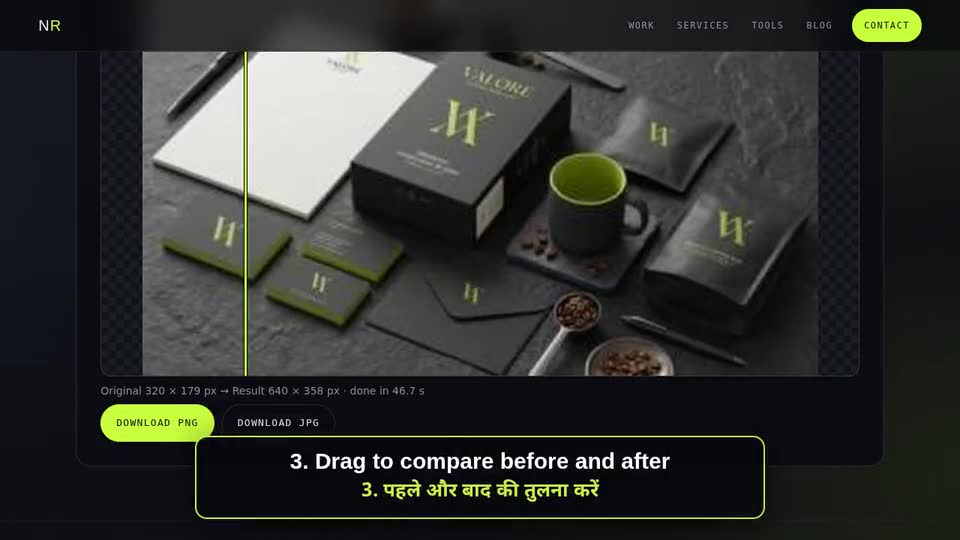
- Check with the before/after slider. Drag across the image and look closely at hair, fingers and the edges of the product.
- Pick a background. Keep it transparent, choose white for marketplace listings, or pick a solid brand colour.
- Download the PNG. Choose the maximum size you need; bigger is better for print, smaller is fine for WhatsApp.
Privacy note: because the model runs on your device, nothing is uploaded. That matters for ID-style photos, family pictures and unreleased products.
Getting cleaner edges
Hair and fur
Flyaway hair is the hardest part for any tool. Shoot against a plain, contrasting wall, and use the portrait model. If a few strands still show the old colour, a dark or busy new background hides them better than pure white.
Shiny and transparent products
Glass bottles, steel utensils and jewellery reflect their surroundings. Use the object model, shoot in soft light, and accept that very transparent glass may need a quick manual touch-up in a design app.
Shadows
Background removers usually remove the floor shadow too, which can make products look like they float. For a natural look, place the cut-out on a background and add a soft, subtle shadow in your design app, or keep a light grey background instead of pure white.
What to do with your cut-out
- WhatsApp catalogue and status: put the product on white or your brand colour, then resize to a square with the image cropper and resizer.
- Instagram posts: resize to 1080 × 1350 (4:5) for the feed or 1080 × 1920 for Stories with the social media image resizer.
- Website or online store: keep sizes consistent (for example, every product image square) and shrink the file with the image compressor so pages load quickly on mobile data.
- Old or blurry photos: if the original is small or soft, try the AI photo enhancer first, then remove the background.
Form photos and passport-style pictures
Many online forms ask for a photo on a white or light background. Removing the background and choosing white is a quick fix, but always follow the exact rules of that form: size in pixels or centimetres, file size limit, face position and whether glasses are allowed. For official documents such as passports and visas, the rules are strict and an edited background may be rejected; when in doubt, use a proper photo studio.
Common problems and quick fixes
- The tool seems stuck on the first run: it is still downloading the model. Stay on the page, keep the screen on and use Wi-Fi.
- Part of the product was removed: switch to the object model, or retake the photo with more contrast between the product and the background.
- Edges look jagged on a big print: choose a larger maximum size before downloading, and start from the original camera photo, not a WhatsApp copy.
- An old phone runs slowly: try a smaller maximum size, or use a laptop browser for large batches.
When a free tool is not enough
Free AI cut-outs are excellent for everyday use. You may still want a designer when you need:
- A full catalogue of 50 or 500 products with identical lighting, shadows and sizes
- Complex cut-outs such as bridal lehengas with net dupattas, glassware or fine jewellery
- Composite images: a product placed into a lifestyle scene, festival creative or hoarding design
- Print-quality files for flex boards, packaging and brochures
Quick checklist
- Subject well lit, in focus, against a contrasting background
- Portrait model for people, object model for products
- Edges checked with the before/after slider
- Background chosen: transparent, white or brand colour
- Resized and compressed for where it will be used
Need product photos or posts designed?
I design product creatives, catalogues, festival posts and ad banners for shops and brands in Hisar, across Haryana and worldwide. See the graphic designer in Hisar page, or send a few sample photos on WhatsApp and I will suggest the best way to present them.
Frequently asked questions
How can I remove the background from a photo for free on my phone?
Open the free background remover on this site in your phone browser, choose the portrait or object model, select the photo and download the PNG. It runs on your device, needs no login and has no watermark.
Is my photo uploaded to a server?
No. The AI model is downloaded to your browser once and the photo is processed on your own phone or computer, so the image is not uploaded.
Why does the tool take longer the first time?
The first run downloads the AI model, which is tens of megabytes or more. After that the model is cached by your browser, so later photos are processed faster.
Can I get a white background instead of transparent?
Yes. After the cut-out you can keep it transparent, switch to white, or pick any solid colour before downloading the PNG.
Can I use this for passport or visa photos?
You can use it for informal or form photos where a plain background is allowed, but official passport and visa photos have strict rules and edited backgrounds may be rejected. A proper studio photo is safer for those.